 Shopify Admin Power-Up
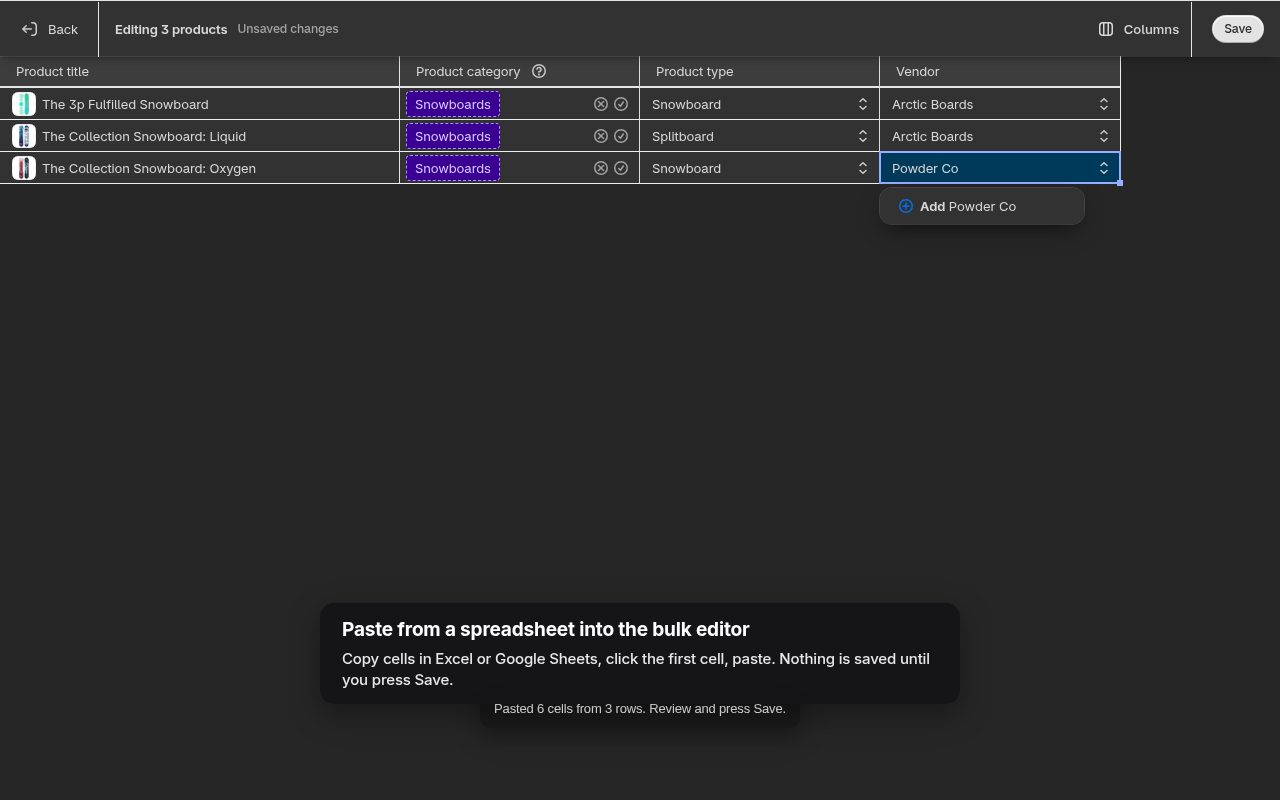
Paste from Excel or Google Sheets into the Shopify bulk editor
Shopify's bulk editor (select products, then Edit products) looks like a spreadsheet, but paste only fills the one cell you are in. Anyone who has tried to copy a column of new prices from Excel into it has ended up typing them one by one or going through a CSV export and import for a change that should take a minute.
How the paste works with Shopify Admin Power-Up
- In Excel, Google Sheets or Numbers, select the block of cells you want to move, for example 40 rows by 2 columns (price and compare at price), and copy.
- In the Shopify bulk editor, click the first cell the block should start in.
- Paste with Ctrl+V (Cmd+V on Mac). The extension reads the tab separated text from the clipboard, moves down the rows and across the visible columns, and types each value into the matching cell the same way you would.
- Check the result and press Shopify's own Save. Nothing is saved until you do.
Rules that keep it safe
- Only visible columns are filled, left to right from the cell you clicked. Hide the columns you do not want to touch before pasting.
- Rows past the end of the editor are ignored; the extension never adds rows.
- Quoted cells with tabs or line breaks inside are handled like a spreadsheet handles them.
- The clipboard is read only at the moment you paste, inside the bulk editor. The extension never reads it anywhere else.
- A small toast tells you how many cells were filled, so a wrong starting cell is obvious before you save.
Good uses
Seasonal price lists from a supplier, filling Product type and Vendor for a batch of imported products, setting compare at prices for a sale, correcting SKUs after a stock count. For more than a few hundred rows, the CSV import is still more robust, especially if you need to create variants.
Shopify Admin Power-Up is a free Chrome extension that adds dark mode, 250 rows per page, quick filters, a command palette, keyboard shortcuts and spreadsheet paste to the Shopify admin. No server, no data collection. Add it to Chrome.