 Shopify Admin Power-Up
Find a Shopify customer by phone number, tag or country
The phone rings. The person on the line wants to change the delivery address on an order they placed "last week, or maybe the week before". They do not remember which email they used. They do know their phone number, because they are holding the phone. You open Customers, type the number into the search box, and get either nothing or a list of people who are not them. This happens often enough at a support desk that we think it deserves its own short guide.
The plain search box on the Customers page is tuned for names and email addresses. For anything else, Shopify wants a field filter: a query in the form field:value. Four of them cover almost every lookup a support or wholesale team does in a day.
The four customer filters worth memorising
| Query | What it finds | Where it bites |
|---|---|---|
phone:+34600111222 | Customers whose record carries that phone number | Format matters; see below |
email:ana@example.com | The customer with that exact email | Faster than the plain box when the name is common |
tag:wholesale | Everyone carrying a tag | Tags with spaces need quotes |
country:ES | Customers whose default address is in that country | Two letter code, not the country name |
They stack. tag:wholesale country:PT is your Portuguese trade accounts. tag:vip email:ana@example.com is a quick way to confirm whether a specific person actually has the tag you think they have.
Why phone search fails so often
Shopify stores customer phone numbers in international format: country code first, no spaces, no brackets, no dashes. The number a customer reads out as "600 111 222" lives in the record as +34600111222. Type it the way they said it and the filter looks for a different string. Type it with the country code and nothing else and it matches on the first try.
Two habits fix this for good. Ask for the number with the country code, even for domestic customers, because that is how it is stored. And if a search still comes up empty, try the last six or seven digits with the plain search box as a fallback; it is slower and noisier than the filter, but it catches records where the number was typed in without a country code by whoever created them.
Country is a code, not a name
country:Spain returns nothing. country:ES returns every customer whose default address is in Spain. The filter reads the two letter ISO code, the same one you see in the address form's country dropdown URL and in shipping zone exports. The ones that surprise people: the United Kingdom is GB, not UK; Germany is DE; Switzerland is CH; Greece is GR. If you do a lot of country lookups, a sticky note with the five or six codes you use most is not a joke, it is the tool.
Also note what "default address" means. A customer who ordered once from a holiday address in France but keeps their home in Belgium shows up under country:BE, not FR. The filter looks at the customer record, not at the orders.
Tags: when to filter and when to build a segment
Shopify's segment editor is the right tool for a list you will reuse: the wholesale accounts, the people who have not ordered this year, the customers in a loyalty tier. It saves, it updates itself, and it plugs into discounts and marketing. The tag: filter is the right tool for a question you are asking once, right now, while someone waits: "Is this customer on the wholesale list?" or "How many people did we tag sample-request last month?". Building a segment for that is like opening a spreadsheet to add two numbers.
Tags containing spaces or colons must be quoted: tag:"trade show 2026". Forget the quotes and Shopify reads it as the tag trade plus two loose words, which usually returns an empty list and no hint about why.
Letting the extension type the query
Knowing the syntax is half the job; typing it correctly while someone is on hold is the other half. Shopify Admin Power-Up puts a row of quick filter chips directly under the search bar on the Customers page: Email, Phone, Tag and Country. Click one, a small input appears in its place with a hint of the format it expects (the Country chip literally says "country code, e.g. ES"), type the value, press Enter. The extension writes the query into the page URL, adds quotes around the value if it contains spaces, colons or brackets, and Shopify renders the filtered list exactly as if you had typed the filter by hand.
A few details that make it comfortable to use all day:
- Applying a chip drops any pagination cursor first, so filtering from page 9 of Customers lands you on page 1 of the results rather than on an empty page.
- Chips work inside saved views. Filter by country while sitting in your "Wholesale" view and you get wholesale customers from that country.
- Escape closes the input and changes nothing. So does clicking elsewhere with the input empty.
- The row appears only on the Customers list, never on a customer's detail page.
- With dark mode on, the chips take the dark colours too.
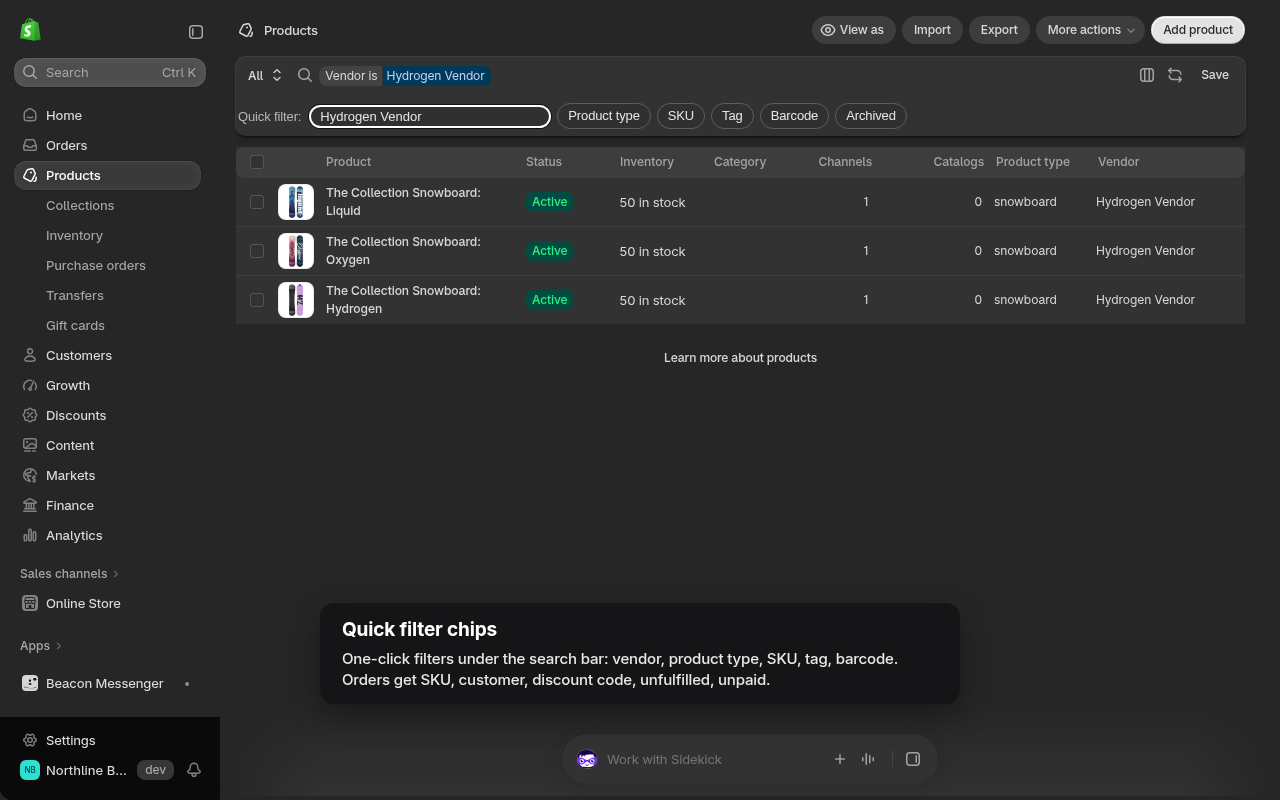
The same row exists on Orders and Products with chips suited to those pages; the orders guide covers SKU, discount code and customer lookups there.
Three lookups, start to finish
- Caller gives a phone number. Customers, click Phone, type
+34600111222, Enter. One result. Open it, the Orders card on the right lists every order, and the one from "last week or the week before" is at the top. - Wholesale rep asks for the trade accounts in Portugal. Click Tag, type
wholesale, Enter. Then click Country, typePT, Enter. The second chip appends to the first; the list is the intersection. Export from there if they want a file. - Marketing wants to know whether a complaint came from a VIP. Click Email, paste the address, Enter. The tag column in the list, or the tags card on the record, answers the question without opening the segment editor.
Turning the chips on or off
Install Shopify Admin Power-Up from the Chrome Web Store and the chips are on by default. To hide them, click the extension icon and switch off Quick filter chips (orders, products, customers). The setting follows your Chrome profile, so it applies to every store you log into. Nothing leaves your browser: the extension has no server, reads nothing from your store beyond the page you are looking at, and writes nothing except the search query in the address bar.