 Shopify Admin Power-Up
Hide archived products in the Shopify admin by default
Archiving is the right way to retire a product in Shopify. The product disappears from your sales channels, old orders still link to it, and reports keep its history. The annoying part comes afterwards: the Products page opens on the All view, and All means all. Three seasons of discontinued colourways sit between you and the forty products you actually sell, and the first thing you do every morning is type -status:archived into the search box. Again.
This post explains what that query does, why Shopify does not remember it for you, and how Shopify Admin Power-Up applies it automatically. It also covers a related nuisance, the Vendor and Product type columns that keep going missing from the product list.
Active, draft, archived: what the status filter sees
Every product has one of three statuses. Active products are available to the channels you have published them to. Draft products are ones you are still working on. Archived products are finished with: Shopify hides them from channels, but keeps them, so the order history and the analytics that reference them stay intact. Deleting a product throws all of that away, which is why archiving is the recommended path for anything that has ever sold.
The product list's search box understands the same field:value syntax we covered in the quick filters post, and status is one of the fields. The useful variants are:
| Query | Shows |
|---|---|
status:active | Only active products |
status:draft | Only drafts |
status:archived | Only archived products |
-status:archived | Everything except archived: active and draft together |
The last one is the one most stores want as their default. The leading minus negates the filter, so you keep drafts visible (you are probably still working on them) and lose only the retired items. It combines with anything else you type, so -status:archived vendor:"Acme Supply" is the live Acme catalogue.
Why Shopify does not remember it
Shopify's answer to "I always want this filter" is saved views: filter the list, click Save as, give the view a name and it appears as a tab. That works, and if you have not tried it you should. But the All tab is the one the admin opens by default, you cannot edit its filters, and the links that take you to the product list from elsewhere in the admin (the sidebar, the command palette, a bookmark) all land on All. The saved view is one extra click away every single time, which is exactly the kind of click that adds up over a year.
What the extension does
With Hide archived products by default switched on, Shopify Admin Power-Up watches for the moment you arrive on the Products page. If you landed on the default All view with an empty search, it adds query=-status:archived to the URL and lets the admin render the filtered list, exactly as if you had typed the query yourself. The search box shows the query, so nothing is hidden from you and you can see at a glance why the list is shorter.
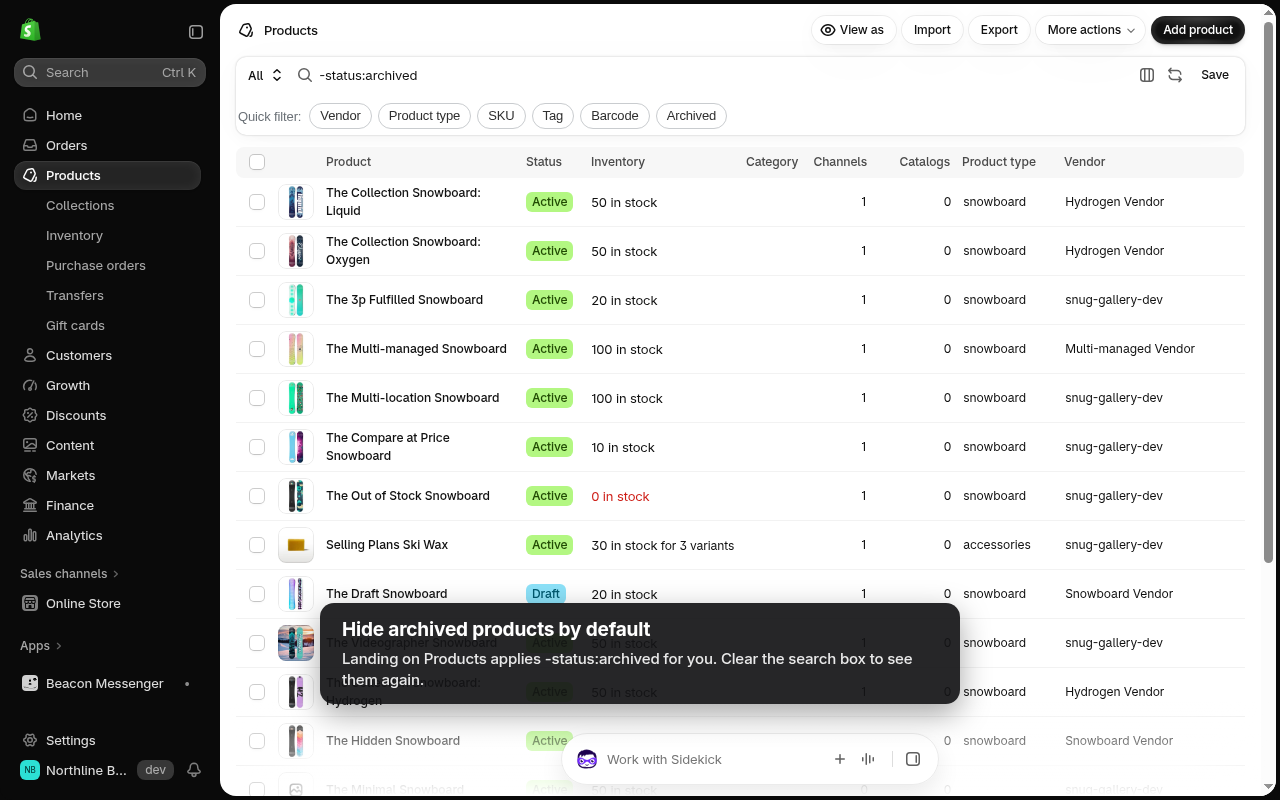
Three rules keep it from getting in the way:
- It only acts on the way in. If you clear the search box to look at an archived product, the list stays unfiltered until you leave the page and come back. The extension does not fight you while you are on the page.
- It never touches saved views. If you open a view you created, with its own filters and columns, the extension leaves it alone. Only the default All view gets the query.
- It never acts on a search you started. Arrive with a query already in the URL, from a bookmark or a quick filter chip, and that query wins.
Because the extension only changes the URL and hands over to Shopify's own router, there is nothing to break on the page itself. The list, the bulk actions, the column picker and the pagination behave as they always do.
Seeing archived products again
Delete the query from the search box, or click the Archived chip in the quick filter row, which swaps the query for status:archived and shows you only the retired items. Open the product, change its status back to Active, and it reappears in the default list on your next visit.
The Vendor and Product type columns
The second setting fixes a smaller irritation. The product list lets you choose which columns to show, and the choice is stored per view. On a fresh store the Vendor and Product type columns are usually hidden, which is fine if you sell your own single brand and useless if you stock thirty of them. Two of the quick filter chips on the Products page filter by vendor and type, and seeing those values in the list is how you know what to type.
Switch on Show Vendor and Product type columns and the extension does something quite literal: the first time you open a product view in a browser tab, it checks the column headers, and if Vendor or Product type is missing it opens Shopify's column picker, clicks Show Vendor and Show Product type, and closes the picker again. A small toast tells you it happened. Shopify stores the result in the view, so from then on the columns are there without the extension doing anything.
- It runs once per view per tab. If you deliberately hide the columns again, it will not reopen the picker until you open a new tab.
- It works per view, because Shopify stores columns per view. Your All view and your Wholesale view each get fixed the first time you open them.
- It relies on the picker's button labels. If Shopify renames them, the setting quietly does nothing rather than clicking the wrong thing, and we will update the extension.
Turning either setting on
- Install Shopify Admin Power-Up from the Chrome Web Store.
- Click the extension icon and tick Hide archived products by default and, if you want it, Show Vendor and Product type columns.
- Open Products. The All view now loads with
-status:archivedin the search box, and the two columns appear after a moment.
The archived setting is also in the command palette: press Ctrl+Shift+K (Cmd+Shift+K on a Mac), type archived, and toggle Hide archived products by default without opening the popup. Both settings sync with your Chrome profile, so they follow you to every store you manage, and they pair well with 250 rows per page: fewer products in the list, more of them on one screen.
As with everything in the extension, this runs entirely inside your browser. It adds a query parameter and clicks two buttons you could click yourself; it sends nothing anywhere and needs no permission in your store. If there is a view or a column you wish the admin would remember, tell us at support.