 Shopify Admin Power-Up
Pin apps to the Shopify admin sidebar (and keep the button)
Most stores run on three or four apps that get opened every single day: the shipping app, the reviews app, the thing that prints pick lists. The route to each of them is the same: click Apps in the sidebar, wait for the list, find the icon, click. Four clicks and a scroll, twenty times a day. Shopify has a fix for this built in. You can pin an app and it gets its own entry in the sidebar, one click from anywhere in the admin. The feature is good. The way you reach it is not, and that is what this post is about.
How pinning works in Shopify
Open Apps in the left sidebar and the list of installed apps expands underneath it. Move the mouse over any app and a small pin icon fades in at the right edge of the row. Its tooltip says Pin to your navigation. Click it and the app moves up into the sidebar proper, next to Orders, Products and the rest. Hover a pinned app and the same icon appears again, now reading Unpin from your navigation, which puts it back in the list.
A few things worth knowing before you start pinning:
- Pins belong to your staff login, not to the store or the browser. In our experience they come along when you sign in on another machine, and a colleague who logs into the same store sees their own pins, not yours.
- Pinned apps keep their position relative to each other in the order you pinned them. There is no drag to reorder. If you want a different order, unpin and pin again.
- Pinning does not change permissions. Staff who cannot open an app cannot pin it either, and a pinned app disappears from the sidebar if the app is uninstalled.
- Sales channels (Online Store, Point of Sale, Shop) live in their own section and are not part of this. Pinning is for apps.
The problem: a button you cannot see
The pin icon is hidden until you hover the row. That is a reasonable design choice for a tidy sidebar, and it is also the reason a surprising number of merchants have never pinned anything. We asked a handful of store owners whether they knew the apps list could be pinned. Most did not. They had hovered over the rows hundreds of times, but hovering to open an app and hovering to look for a tiny icon at the far edge are different things, and nothing in the admin tells you the icon is there.
It gets worse on a touch screen. An iPad has no hover state, so the pin icon never appears at all unless you tap in exactly the right empty spot. And on a laptop trackpad the row is narrow enough that moving towards the icon often slides the pointer onto the next app, which hides the icon you were aiming for and shows a different one.
What the extension changes
Shopify Admin Power-Up has a setting called Always show app pin buttons in the sidebar. It is on by default. With it on, the pin and unpin icons are simply visible all the time, on every row of the apps list and on every pinned app. Nothing else about them changes: they are Shopify's own buttons, they do what they always did, and the pins they create are stored by Shopify in exactly the same way.
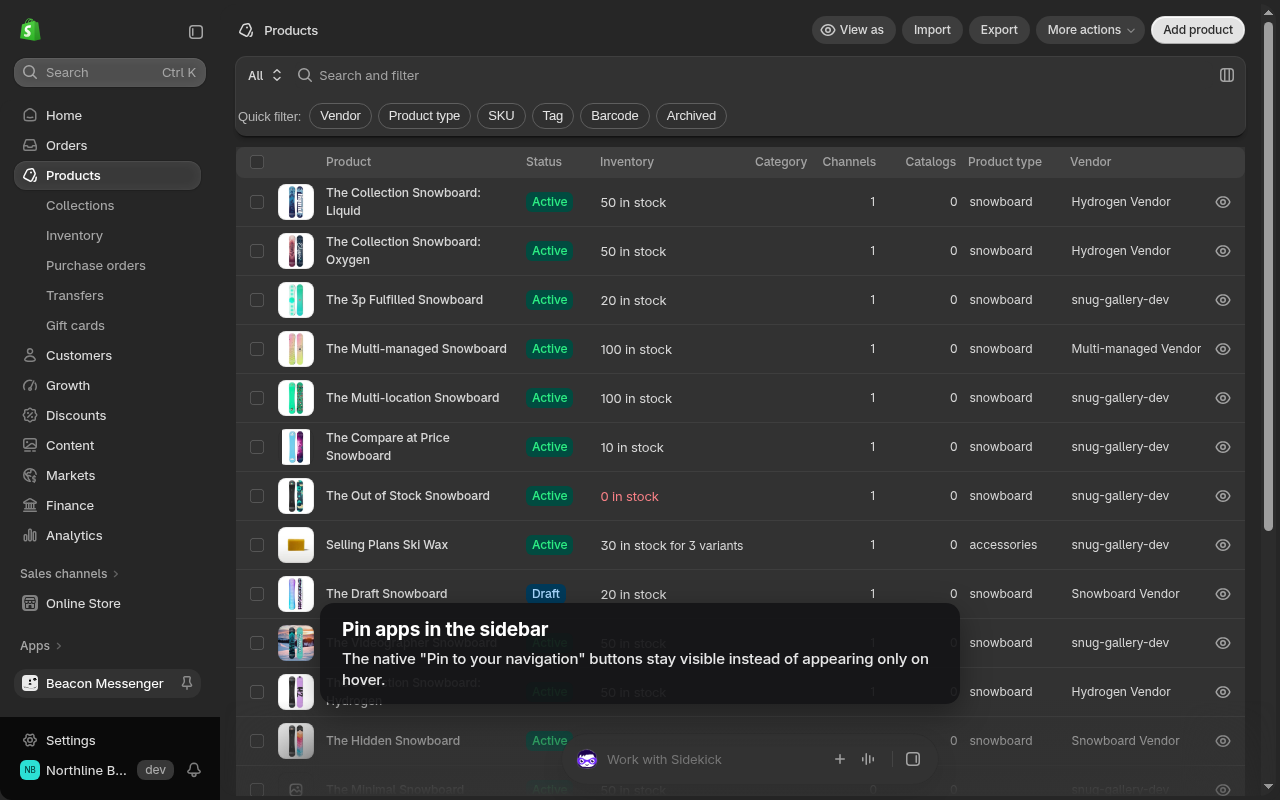
This is the smallest feature in the extension by a wide margin. Under the hood it is a handful of lines of CSS that override the opacity and visibility rules Shopify applies to those two buttons. There is no script watching the sidebar, no click is sent on your behalf, and the extension never reads which apps you have installed. It is the kind of change that could not possibly break anything, which is exactly why we felt comfortable turning it on by default.
A sensible set of pins
Because pins are per login, the useful question is not "which apps does the store use" but "which apps do I open every day". A packer and a marketing manager on the same store should end up with different sidebars. Some patterns we have seen work:
- Fulfilment staff: the shipping label app and the pick list or barcode app. Nothing else. Two pins, and the Apps list is never opened again during a shift.
- Owner or manager: the reporting app, the email or SMS marketing app, and whatever handles reviews or loyalty. Three or four pins at most. Past that, the sidebar gets as long as the list it was meant to replace.
- Agencies and freelancers: pin per store, not per habit. Since pins follow the login into each store separately, the sidebar you see in a client's admin is the one you set up there.
If a pinned app also has a page you jump to constantly, the sidebar is not the only route. The command palette that ships with the extension lists installed apps in its Apps group, so typing the first letters of the app name and pressing Enter opens it without touching the mouse. Pins for the daily set, palette for everything else, is how we end up working.
Turning it on or off
- Install Shopify Admin Power-Up from the Chrome Web Store. The pin buttons become visible on the next admin page you load.
- Open Apps in the sidebar. Every installed app now shows its pin icon at the right edge of the row. Click the ones you use daily.
- To go back to Shopify's hover behaviour, click the extension icon and switch off Always show app pin buttons in the sidebar. The change applies immediately, no reload needed, and the setting syncs with your Chrome profile across stores.
Your existing pins are untouched either way. The setting controls the visibility of a button, not the pins themselves, so switching it off after you have pinned your apps leaves the sidebar exactly as you arranged it.