 Shopify Admin Power-Up
Shopify admin keyboard shortcuts: the full list (2026)
If you have searched for a list of Shopify admin keyboard shortcuts and come back with nothing useful, that is because the web admin at admin.shopify.com does not come with a cheat sheet to find. The sidebar is the navigation. Every trip from an order to a product to a customer is a mouse trip, and if you live in the admin for a few hours a day those trips add up.
Shopify Admin Power-Up adds a layer of shortcuts on top of the admin, in the style Gmail and GitHub use: two quick key presses, no modifier keys. This post is the complete list, with the rules about when they fire and when they stay out of the way.
The two-key sequences
Press g and then a letter to go somewhere. Press n and then a letter to create something. You have 1.2 seconds between the two presses; after that the first key is forgotten and nothing happens, so a stray g typed by accident cannot send you anywhere by itself ten seconds later.
| Keys | Opens |
|---|---|
| g h | Home |
| g o | Orders |
| g d | Draft orders |
| g p | Products |
| g l | Collections |
| g i | Inventory |
| g c | Customers |
| g x | Discounts |
| g f | Content: Files |
| g m | Markets |
| g a | Analytics |
| g r | Reports |
| g t | Themes |
| g s | Settings |
The create sequences open the new-record form directly, skipping the list page in between:
| Keys | Creates |
|---|---|
| n p | New product |
| n o | New draft order |
| n c | New customer |
| n x | New discount |
| n l | New collection |
Two single keys round it out. / puts the cursor in the search and filter box of whatever list you are looking at, so on the orders page you can type / and then an order number without reaching for the mouse. ? opens the cheat sheet, which is really the command palette filtered down to the commands that have a key sequence, so it is always current.
When the shortcuts do not fire
A shortcut layer that eats letters while you are typing a product title is worse than no shortcuts at all, so the rules are strict. The sequences only run when no text field has focus. If the cursor is in an input, a textarea, a select, a rich text editor or anything marked as editable, every key goes to the field and the extension ignores it. They also stay quiet while you hold Ctrl, Alt or Cmd, so the browser's own shortcuts (Ctrl+F, Ctrl+T, Alt+Left) keep working exactly as before. Pressing / only does something on pages that have a search and filter box; elsewhere it is a normal keystroke.
Navigation uses the admin's own router. Pressing g o pushes the new URL into history and lets the admin render the orders page without a full reload, which is why it feels instant. If the admin does not react within 400 milliseconds (this can happen right after a Shopify release), the extension falls back to a normal page load of the same URL, so you still end up where you asked.
The command palette
For everything that does not have a sequence, there is a palette. Ctrl+Shift+K on Windows and Linux, Cmd+Shift+K on a Mac. It opens a search box over the page with five groups of commands:
- Go to: every entry from the table above plus the ones without a sequence: abandoned checkouts, purchase orders, transfers, gift cards, customer segments, metaobjects, menus, blog posts, pages, live view, marketing and apps.
- Create: the five create sequences plus new transfer, new purchase order and new gift card.
- Apps: every app currently pinned in your admin sidebar, read from the navigation itself, so it matches your store rather than a fixed list.
- Settings: nineteen settings sections by name, from General and Plan to Shipping and delivery, Taxes and duties, Locations, Markets, Domains, Notifications, Custom data, Languages, Policies and the store activity log.
- Power-Up: toggle dark mode, set rows per page to 50, 100 or 250, and switch hiding archived products on or off.
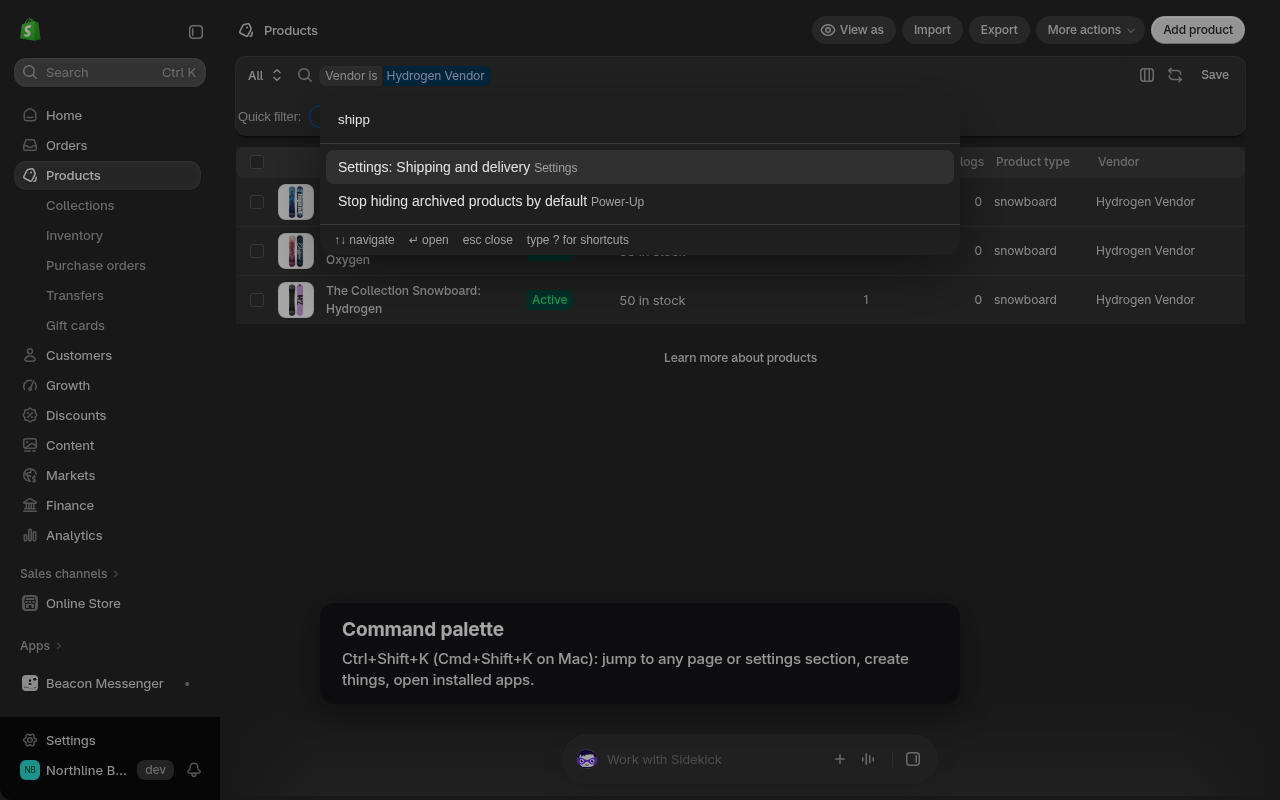
Matching is fuzzy and favours word starts, so you rarely type more than three or four letters. ship ranks Settings: Shipping and delivery first. np finds New product. dark finds the dark mode toggle. Arrow keys or Ctrl+N and Ctrl+P move the selection, Enter runs it, Escape closes. Nothing in the palette is a new page; it only builds the same admin URLs you would reach by clicking, and the settings commands are plain links to /settings/... paths.
Changing the global shortcuts
The two-key sequences are fixed, because they are meant to be the same on every store you log into and on every machine with your Chrome profile. The two global shortcuts, Ctrl+Shift+K for the palette and Alt+Shift+D for dark mode, are registered with Chrome itself, which means you can change them at chrome://extensions/shortcuts if they collide with another extension or with a system shortcut. On some Linux desktops Ctrl+Shift+K is already taken by the terminal; remap it there and the palette follows.
Turning parts of it off
The popup has separate switches for the command palette and for the keyboard shortcuts. Turn the shortcuts off and g o, n p, / and ? all stop; the palette keeps working. Turn the palette off and the global key does nothing, while the sequences still run. Staff who share a machine and only want dark mode or bigger pages can leave both off and lose nothing else.
A small habit that pays off
Most people adopt three or four of these and stop. g o, /, and the palette for settings cover most of a support shift: a customer writes in, you press g o, /, paste the order number, and you are reading the order before the sidebar would have finished its hover animation. Add n o if you build draft orders for phone sales, and g i if you adjust stock by hand. The rest are there when you need them, listed under ?.