 Shopify Admin Power-Up
Find a Shopify product by barcode, vendor or product type
A box arrives from a supplier. You pick up the first item, scan the barcode into the search box on the Products page, and the admin tells you it found nothing. The product is in your store. You sold three of them last week. The problem is that the plain search box on the Products page matches titles, and a thirteen-digit EAN is not a title.
This post is the Products counterpart to our guides on orders and customers. It covers the search syntax the Shopify admin already understands for products, the reasons each lookup tends to fail, and the quick filter chips Shopify Admin Power-Up puts under the search bar so you do not have to remember any of it.
The queries that work
The Products list accepts field:value filters typed straight into the search box. These are the ones that matter for finding a specific product or narrowing to a group:
| Query | What it finds |
|---|---|
barcode:4006381333931 | The product with a variant carrying that barcode (EAN, UPC, ISBN, whatever you store there) |
sku:BLK-M-42 | The product with a variant whose SKU matches |
vendor:"Acme Supply" | Every product from one vendor |
product_type:Hoodie | Every product of one type |
tag:preorder | Products carrying a tag |
status:archived | Archived products only |
Filters stack with a space between them. vendor:"Acme Supply" product_type:Hoodie gives you one vendor's hoodies, and adding status:active drops the drafts and archived ones. The list updates the moment you press Enter, and the query lands in the URL, so you can bookmark it or paste it to a colleague.
Why each one fails when typed by hand
Barcode. The search box does not look at barcodes unless you put barcode: in front of the number. Scanners type the digits and press Enter for you, which is exactly the sequence that produces an empty result. People get around it by keeping a text editor open, scanning into that, and copying the number into a prepared barcode: query. That works and it is silly.
Vendor and product type. Both are in the Filters panel, so you can get there with the mouse: open Filters, find Vendor, pick from the list. The list is every vendor in your catalogue, which on a store with two hundred brands means scrolling. Typing vendor: is faster, with one catch: a vendor name with a space in it must be wrapped in double quotes. vendor:Acme Supply searches for vendor Acme and then for the word Supply anywhere, which is not what you asked.
SKU. Same story as barcode. The prefix is the whole trick, and the SKU filter is not in the Filters panel either, so there is no mouse route to it.
Tag. Tags are in the Filters panel and tag: works too. The failure mode here is a tag with a space, such as tag:"summer 2026", which needs the quotes for the same reason vendors do.
The chips
With Shopify Admin Power-Up installed, the Products page gets a row of chips directly under the search bar, labelled Quick filter. For products there are six: Vendor, Product type, SKU, Tag, Barcode and Archived.
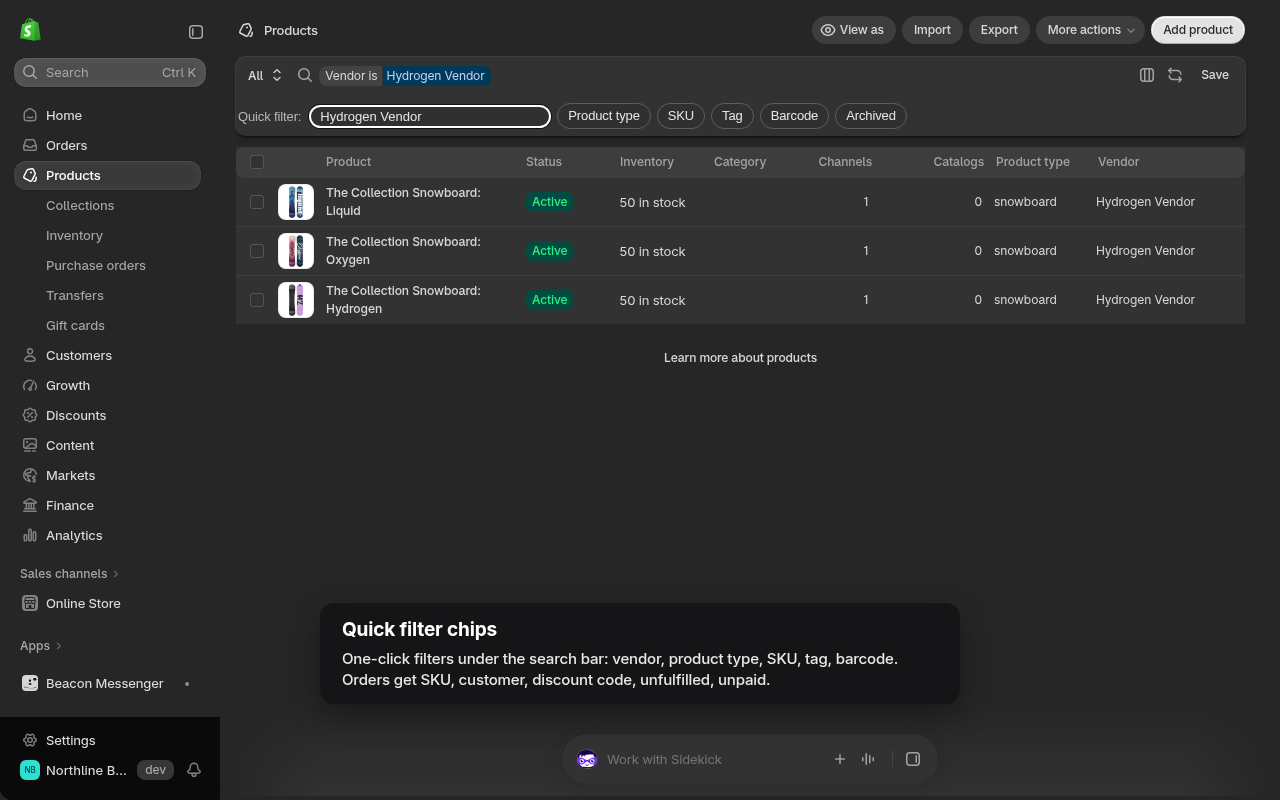
Click a chip and it turns into a small text input with a placeholder telling you what it expects. Type or scan the value, press Enter, and the extension writes the correct query into the URL: the prefix, the value, and the double quotes if the value contains a space, a colon or a quote mark. Shopify renders the filtered list exactly as if you had typed the syntax yourself, because that is what happened.
The Archived chip has nothing to type, so it applies on the first click. It is the opposite of the extension's hide archived by default setting: that setting keeps archived products out of the All view, and this chip shows you only them, which is how you find the product you archived by mistake last month.
The receiving desk workflow
The Barcode chip was built for one job. Put a USB or Bluetooth scanner next to the laptop, open Products, click Barcode, and scan. The scanner types the digits into the chip's input and sends Enter, the list filters to one product, and you click through to adjust stock or check the price. Click the chip again for the next item. No text editor, no retyping. If the scan finds nothing, the barcode on the box is not the barcode on the variant, which is worth knowing before you shelve it.
One chip means one query. Clicking Barcode after Vendor replaces the vendor filter rather than adding to it, which is the right behaviour for a scan: you want that one product, not that product if it happens to be from the brand you looked at before. To combine two filters, type them by hand with a space between them. Chips do keep the saved view you are in, so scanning inside a Wholesale view stays in Wholesale.
Small details
- Applying a chip drops any pagination cursor. From page 9 of Products, filtering by vendor lands you on page 1 of the results rather than on an empty page 9.
- Escape closes the input without changing anything. Clicking elsewhere with an empty input does the same.
- The chips appear only on the Products list, not on product detail pages, and they are rebuilt when you navigate between lists, so the Orders page gets its own set.
- If you also turn on Show Vendor and Product type columns in the popup, the values you are filtering on are visible in the table, which makes it easier to see why a product did or did not match.
- Everything runs inside the page. The extension builds a URL; it does not call anything of its own and does not read your catalogue.
When to use the Filters panel instead
Shopify's Filters panel is better for anything you want to save. Pick vendor and product type there, sort the list, choose columns, and save the result as a view; it becomes a tab you can click tomorrow. Chips are for the one-off lookup: this barcode, this SKU, this vendor's products right now. Most days at a receiving desk are entirely one-offs, which is why the chips are the thing you end up reaching for.
Turning the chips off
Click the extension icon and untick Quick filter chips (orders, products, customers). The chips disappear from all three lists; nothing else changes. The queries in the table above keep working by hand, with or without the extension.